Force UI MCP
Force UI provides an MCP (Model Context Protocol) server that gives AI assistants accurate component usage context — correct props, patterns, and examples — so you get reliable implementations without guesswork.
MCP (Model Context Protocol) is an open standard that lets AI assistants connect to external tools and data sources. The Force UI MCP server exposes component documentation, prop definitions, and usage patterns directly to your AI client.
When connected, your AI assistant can:
- Look up exact prop names, types, and defaults for any Force UI component
- Get working code examples without hallucinating incorrect APIs
- Follow Force UI patterns instead of guessing
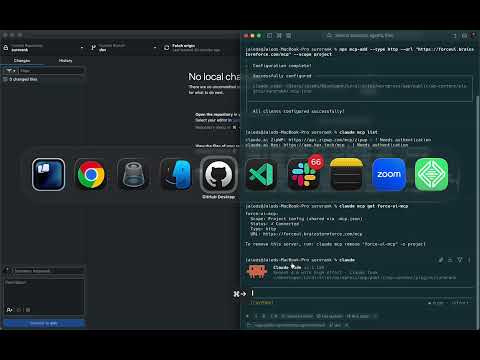
Watch the setup walkthrough before diving in:
- Node.js v18 or later
-
npxavailable in your terminal (ships with Node.js) - A supported AI client (see Supported Clients below)
Run the following command in your project root:
npx mcp-add --type http --url "https://forceui.brainstormforce.com/mcp" --scope projectUse
--scope globalinstead of--scope projectto make the MCP server available across all projects on your machine.
When prompted, use the following values:
| Prompt | Value |
|---|---|
| What is the server name? | force-ui-mcp |
| HTTP headers? (comma-separated Key=value, or leave empty) | Leave empty |
| Which clients should be configured? | Select your preferred AI client(s) |
| claude code OAuth client ID? (leave empty if not needed) | Leave empty |
Once setup completes, you are ready to use Force UI MCP in your project.
The following MCP-compatible AI clients are supported:
- Claude Code (Anthropic CLI)
- Cursor
- Windsurf
- Continue
- Cline
- Any other client that supports the MCP HTTP transport
After installation, test that MCP is working correctly inside your AI client:
- Open your AI client (e.g. Claude Code)
- Ask: "Using Force UI MCP, what props does the Button component accept?"
- The assistant should return accurate prop definitions from Force UI — not a generic response
If the assistant returns Force UI-specific prop details, MCP is connected correctly.
Remove the force-ui-mcp entry from .mcp.json in your project root:
{
  "mcpServers": {
    "force-ui-mcp": { ... }  // ← delete this entry
  }
}Remove the entry from your global MCP config file. Location varies by client:
-
Claude Code:
~/.claude/mcp.json -
Cursor:
~/.cursor/mcp.json -
Windsurf:
~/.codeium/windsurf/mcp_config.json
npx mcp-add command not found
Install mcp-add globally and retry:
npm install -g mcp-add
npx mcp-add --type http --url "https://forceui.brainstormforce.com/mcp" --scope project
Server unreachable / connection error
Verify the endpoint is accessible:
curl -I https://forceui.brainstormforce.com/mcpShould return HTTP/2 200. If not, check your network or firewall settings.
AI assistant not using MCP after install
- Restart your AI client fully — MCP config is read at startup.
- Confirm the config file was written (check
.mcp.jsonin project root for project scope). - Re-run the install command and verify you selected the correct client when prompted.