Database extension
That way your custom track pieces are not divided and are inside the general data pool for client and server. This is good if you want to test something fast.
- In the console ( Bring it up with
~key under ESC ):trackassembly_exportdb 1[ press enter ] - Server: Point the crosshair anywhere on the map, then hit SPEED ( Default: Shift ) + RELOAD ( Default: R )
- Client: Just bring up the Frequently used pieces screen, then click the
Export client's DBbutton - Use Excel or another table editing program to edit the files
sv_*.txtandcl_*.txt - After exporting, tables are located under
..common/GarrysMod/garrysmod/data/trackassembly/dsv/[DSV Folder] - Navigate to the DSV folder using explorer(Windows)/nautilus(Linux) and proceed
- Open all *TRACKASSEMBLY_PIECES.txt files and make your edits using tab-delimited [Excel 2010]
- [Excel 2010]
File->Save As-> Navigate to theDSVfolder if you are not in there already - [Excel 2010] File name:
*TRACKASSEMBLY_PIECES.txt - [Excel 2010] Save as type:
Text (Tab delimited)(*.txt) - [Excel 2010] Replace it if you must (don't worry, you can always generate it again ( points 2. and 3. )
- [Excel 2010] It will prompt you that the file you are saving does contain features not compatible with the
TAB Delimitedformat - [Excel 2010] Click
Yesand close Excel - [Excel 2010] It will want you to save it again, so just click
Don't Save - [Excel 2010] You are good to go If you have trouble with this step-by-step tutorial, maybe this will help
This option is mostly used when you want to separate your own stuff from the general data pool.
The track pack creators use this method to add their custom track models in the database
via Lua script.
Let's call the <database_prefix> MyStuff_ ( what's added ) and your addon name John Doe's track pack ( who has added it a.k.a the data exporter )
- Navigate to
..common/GarrysMod/garrysmod/data/trackassembly - Open the file
trackasmlib_dsv.txt. If it does not exist, then just create it.- You can always comment out an addon to prevent it from loading its pieces to the database via
#a hashtag symbol in front of the line that you want disabled.
- You can always comment out an addon to prevent it from loading its pieces to the database via
- Inside the file, you just have to add the content
<database_prefix>[TAB symbol]<data_exporter>- For the example above you will have
MyStuff_[-->]John Doe's track pack - The second value is optional, but you will need a tab symbol to separate these two if you put it there. If you don't put it, you need only the prefix
- For the example above you will have
- Open the file
dsv/MyStuff_TRACKASSEMBLY_PIECES.txtIf it does not exist, then just create it. This file is mandatory. Now insert your track piece models and they will be loaded during the tool initialization - Open the file
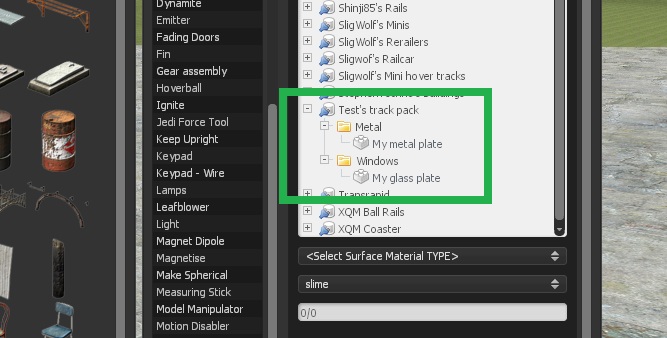
dsv/MyStuff_TRACKASSEMBLY_CATEGORY.txt. If it does not exist then just create it. This is optional! It is done when you want to use classification categories for your database The format contains an open definition delimiter, a closing one, and a separator. Between these, you must have your addon name and a function defined as a string.- The token opening the definition is
[===[(1) - The token used for delimiter is
===(2). - The closing sequence for the definition is
]===](3)and it means that the definition ends. - Between
(1)and(2)you must have the addon name (ex. John Doe's track pack). - Between
(2)and(3)you must have an actual Lua function written as a stringfunction(m) ( do some stuff ) end, where themparameter is dynamically populated with the track piece model path. You must use that value to extract the category you need. Usually, this is one of the sub-directories of the model path or piece prefix/suffix. - This function usually returns two values. The first is an array of strings or a single string
pthat defines the path to the piece in the tool tree. The second one is the stringn, which you can use to override the track piece name.
- The token opening the definition is
- Open the file
dsv/MyStuff_TRACKASSEMBLY_ADDITIONS.txtThis is optional! If it does not exist, then just create it. This file holds definitions for what props must be spawned with the track pieces. These are like scenery, buttons, and stuff. A good example of an addon which uses ADDITIONS parameters isShinji's track pack - Open the file
dsv/MyStuff_TRACKASSEMBLY_PHYSPROPERTIES.txtThis is optional! If it does not exist, then create it. This part is done if you need additional physical properties.
Note: After adding these models, the database can be exported again.
This will generate export data that can be located under ../data/trackassembly/exp/
If you want me to review your custom models/addons, please provide these inserts to me.
Whether it is for PIECES, ADDITIONS, PHYSPROPERTIES, these files will be generated with
the instance prefix also ( cl_*.txt and sv_*.txt ). Please provide me with the client-side file.
You must add your addon to the auto-load pieces list located in /data/trackassembly/set/trackasmlib_dsv.txt
This registers your *.txt files for automatic database insertion during tool script initialization.
To disable an addon from loading its pieces in the database, you can always comment it via a
hashtag # in front of the line definition that you want disabled. The addon registered multiple
times will not be loaded on start-up until the user makes a review of the auto-load list for the
repeating sequences for the given prefix. The addition is done using the function RegisterDSV.
Beware that you need a lock file not to add the same addon to both the client and server during single-player.
After this is ready, you must add your pieces. You must create your own Lua file, which generates
the table data in DSV format tab delimited. There is this SynchronizeDSV
function, which does exactly that. It's always good to have the pieces table used for a locking file.
If you want to use categories for your custom pieces list, you must use the ExportCategory function.
Every question you may have for creating such a script is explained in the example below,
where you have to call it on auto-run. For example: your_addon/lua/autorun/your_script.lua
like this.
After you test your script and it does work with TA, you can add it to your track pack,
upload it to the workshop without any hassle, as it is a *.lua file, and it will not be rejected.
Note: When all your script goes according to the plan, you will have this: